

Will Audi steering wheel controls work after a CarPlay upgrade?
Audi steering wheel controls can work after a CarPlay upgrade, but retention depends on the upgrade’s compatibility with your original infotainment system and its control interface. Confirm volume, track selection, calls, and voice-button behavior separately before ordering: support for one function does not establish support for every button.
- Audi CarPlay steering wheel controls require confirmed MMI compatibility and button mapping, not just a matching dashboard screen.
- Bayernmotorwerks lists Audi multimedia upgrades; verify control retention for your exact infotainment system before choosing one.
- A wireless CarPlay adapter requires existing compatible wired CarPlay; it does not add CarPlay to an unsupported system.
- Test factory audio and CarPlay separately before refitting dashboard trim.
Will Audi steering wheel controls work after a CarPlay upgrade?
Yes, when the upgrade supports your original Audi infotainment system and correctly integrates its steering wheel inputs. A replacement screen’s appearance, an Audi model name, or a CarPlay logo does not establish that compatibility. You need confirmation for the actual system installed in your car.
Start with the upgrade type. A wireless adapter, an interface added to the original infotainment system, and a replacement multimedia screen do different jobs. Use the Audi CarPlay retrofit kits guide to frame your selection, then check the individual listing and installation instructions.
| Upgrade type | Best for | What to verify about controls | Benefit | Limitation |
|---|---|---|---|---|
| Wireless CarPlay adapter | Owners with compatible wired CarPlay already installed | Existing button behavior through the adapter | Keeps the existing infotainment hardware | Does not create CarPlay compatibility where none exists |
| Add-on CarPlay interface | Owners seeking CarPlay while retaining the original screen | Supported MMI version, control interface, and button assignments | Retains the original display arrangement | Requires system-specific connections and configuration |
| Replacement multimedia screen | Owners seeking a different display and phone interface | Original-system support, supplied harness, and retained functions | Changes the display and interface together | Screen fitment alone does not prove control retention |
These are upgrade categories, not promises about a particular kit. For your 2026 purchase, require a function-by-function answer tied to your vehicle and original system rather than accepting a general statement that steering wheel controls are supported.
Why this matters
Steering wheel control retention is not a single feature. Volume adjustment, track selection, telephone commands, and voice activation involve different actions, and an upgrade can assign them differently from the factory system.
A working volume roller does not prove that the voice button starts Siri. Likewise, a working touchscreen does not establish that the original MMI controller, steering wheel buttons, or instrument-cluster information will behave as before. Buy for the functions you use, not for the functions shown in a promotional screen image.
The objective is a factory-style operating experience without concealing installation requirements. A tidy dashboard still needs the correct wiring, audio route, configuration, and documented control behavior.
What should you check before ordering?
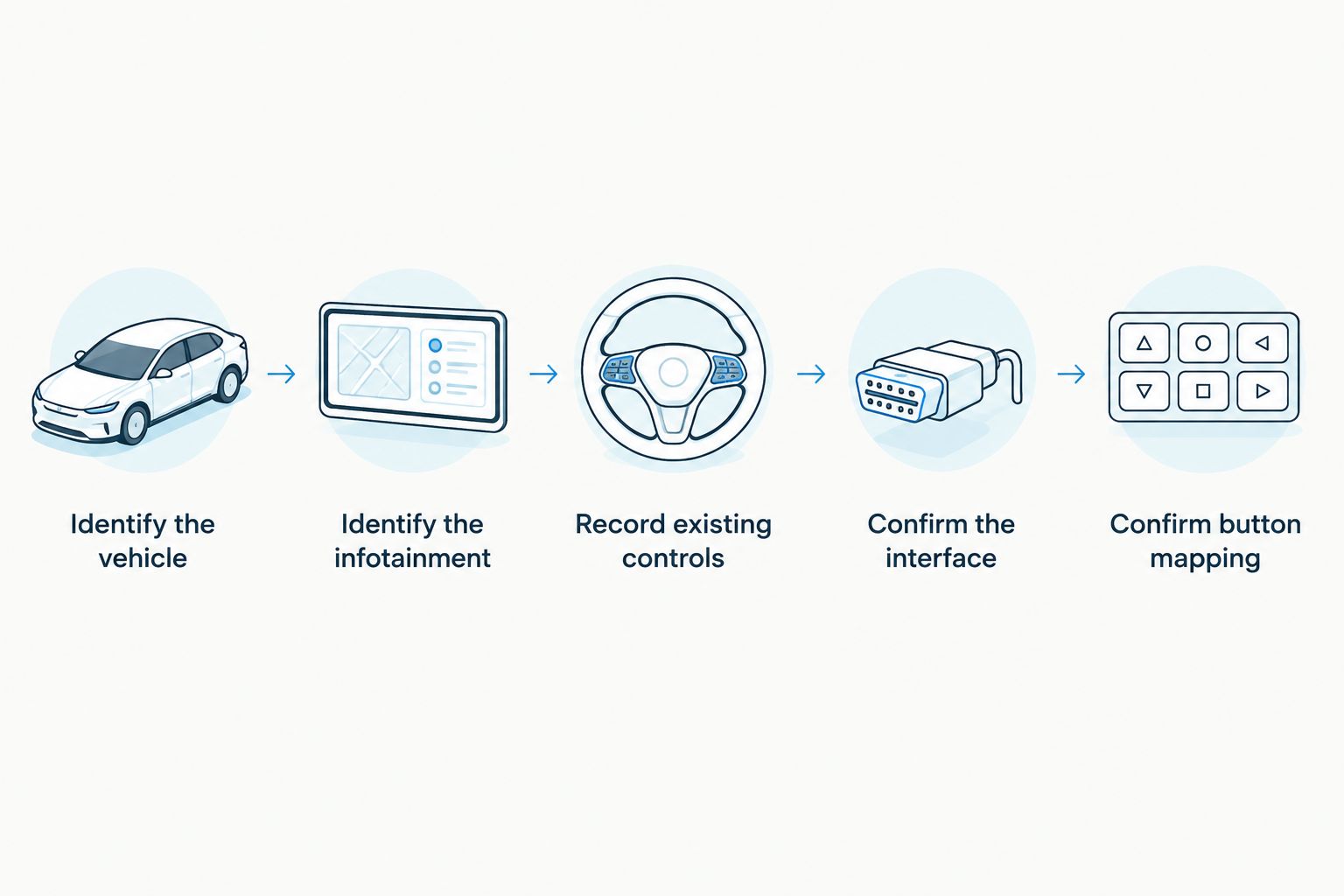
Follow this sequence before selecting an upgrade. Record the vehicle’s existing equipment first; do not try to identify it from a replacement screen’s compatibility headline.
- Identify the vehicle. Record the model, model year, and vehicle generation. Include the VIN when requesting a fitment check, but also provide infotainment details because those determine the electronics involved.
- Identify the infotainment. Photograph the original screen, center-console controls, and system version information available through the vehicle’s menus. Provide the exact displayed system identifier rather than describing it only as “Audi MMI.”
- Record existing controls. Note which steering wheel buttons work now and what each does. Include the voice button, telephone button, volume control, and any track or selection controls your wheel actually has.
- Confirm the interface. Ask which supplied components retain the steering wheel commands and how the kit connects to the original system. Obtain installation instructions before deciding whether you can complete the work yourself.
- Confirm button mapping. Request the behavior of each relevant button in CarPlay, including whether a short press and a long press have different functions. Keep that answer with your order information.
Do not remove the steering wheel or airbag to identify a multimedia upgrade. The useful evidence is the existing control layout, infotainment identification, and the kit’s documented connections. Leave airbag-related work to an appropriately trained technician.
Bayernmotorwerks is best for Audi owners comparing listed multimedia upgrades against their original infotainment equipment. Use that equipment record to narrow the selection; a model-level listing is the starting point, not the final fitment decision.
Which steering wheel functions need separate confirmation?
Ask about commands by name. “Retains steering wheel controls” is too broad to answer whether your most-used action survives the upgrade.
| Function | Question to ask before ordering | Acceptance check after installation |
|---|---|---|
| Volume | Does the original wheel control adjust CarPlay audio? | Confirm that it changes the audible output while CarPlay plays |
| Track selection | Which wheel inputs change tracks in CarPlay? | Check previous and next commands in a supported music app |
| Telephone | How are answering and ending calls assigned? | Test both actions with the intended phone connection |
| Voice button | Does it activate Siri, the original voice system, or both? | Test the documented short-press and long-press behavior |
| Selection control | Does the wheel control operate CarPlay menus or only factory menus? | Test the stated function in each interface |
| Mute | Is mute retained, and what does pressing it again do? | Confirm muting and restoring sound without using the touchscreen |
Only test controls your Audi has. Do not assume a different wheel’s button arrangement applies to yours, even when the cars share a model name.
Also separate steering wheel retention from dashboard-controller retention. A kit can describe support for the original MMI controller without explaining the steering wheel’s telephone or voice commands. Request both answers if you depend on both control methods.
Why Audi CarPlay steering wheel control compatibility varies
Compatibility depends on the original equipment and the upgrade’s integration, not simply the age of the vehicle. These are the factors to resolve:
- Original infotainment system: The kit must support the installed system variant, including its connections and control method.
- Upgrade architecture: An adapter, add-on interface, and replacement screen interact with the existing system differently.
- Control interface: The relevant harness and interface must carry or interpret the vehicle’s button commands as documented.
- Button assignments: A retained button can perform a different action in CarPlay, particularly for voice activation or switching interfaces.
- Audio routing: A recognized command is not proof that CarPlay audio reaches the original sound system correctly.
- Installation settings: System selection and button configuration must follow the instructions for the exact kit and vehicle combination.
For a 2026 installation, resolve these questions before dashboard disassembly. Do not treat generic wiring advice or settings from another kit as a substitute for the supplied instructions.
What does a listed Audi multimedia upgrade establish?
Bayernmotorwerks lists an Audi A6/A7 C7/C7.5 multimedia touchscreen upgrade for the 2012–2018 model-year range, with RMC, HNR, and MHI identifiers in its title. That gives you specific vehicle and infotainment terms to check, but it does not establish steering wheel behavior for your car.
The supplied listing title specifies an 8.8-inch touchscreen, while its description refers to a 9-inch touchscreen. The description also states a 1920 × 720-pixel display. Resolve that size discrepancy before ordering; do not silently treat the two descriptions as identical.
The listed Android 14 platform is another specification to distinguish from CarPlay support. An Android-based multimedia screen does not, by that fact alone, establish Apple CarPlay capability, Android Auto capability, or retained factory controls. Confirm those features individually for the configuration you intend to order.
Best for: A6/A7 owners within the listed application who can verify their original infotainment identifier and obtain the missing integration details. The useful feature is a vehicle-specific starting point; the limitation is that the provided product information does not confirm button mapping, coding requirements, or guaranteed plug-and-play installation.
Can you install the upgrade yourself?
You can identify your infotainment system, photograph existing controls, record baseline behavior, and review installation instructions yourself. Those preparation steps do not require opening the dashboard or altering wiring.
Owner installation is appropriate only when you understand the documented procedure and have the tools and skills it requires. Read the complete instructions before deciding. A matching connector does not prove that every harness branch, audio connection, or system setting is correct.
Use an experienced installer for undocumented wiring, connector modifications, required coding, or diagnosis beyond your ability. Do not probe unfamiliar vehicle connections or change settings at random to recover a button function. Ask the installer to document the connections and settings used.
For 2026 installation planning, include functional testing in the job specification. Request a demonstration of retained controls with your phone connected, not just a photograph of CarPlay appearing on the screen.
How should you test the controls after installation?
Test while parked and before the dashboard trim is finally refitted. Follow the kit’s instructions for safe powering and access; do not leave loose wiring where it can interfere with driving controls.
- Factory baseline: Confirm that the original audio interface and existing steering wheel functions still work.
- CarPlay connection: Connect the intended phone through the supported method and confirm that CarPlay opens.
- Audio output: Play audio and check the selected source, audible output, and volume response.
- Media commands: Test the documented track and selection functions in CarPlay.
- Call handling: Test answering, ending, and call audio using the intended microphone arrangement.
- Voice behavior: Test the documented voice-button action and any specified long-press function.
- Return to factory: Switch back to the original interface and confirm the functions the kit claims to retain.
Record failures precisely. “Volume works in factory radio but not in CarPlay” gives the installer a useful boundary; “the wheel does not work” does not.
Repeat the acceptance test after any configuration change. Keep the final settings and results with your 2026 installation record so subsequent troubleshooting starts from a known working arrangement.
Why does volume work but the voice button does not?
Volume and voice activation are separate functions, so successful volume control does not establish Siri-button support. Check the documented voice-button assignment and whether it requires a short press, a long press, or a different control.
If the supplied instructions do not describe voice-button behavior, ask for confirmation rather than trying unrelated settings. Treat an undocumented function as unconfirmed when making the purchase decision.
Will a wireless adapter keep the controls I already use?
A wireless adapter changes the connection to an existing compatible wired CarPlay system; it does not replace the need for that underlying compatibility. Confirm that the adapter supports your system and preserves the button actions you use.
Test wired CarPlay first to establish a baseline. If a command fails only after adding the adapter, that difference helps isolate the problem without assuming the steering wheel itself is faulty.
FAQ
Will my Audi steering wheel controls work with aftermarket CarPlay?
Audi steering wheel controls can work with aftermarket CarPlay when the upgrade supports the original infotainment system and its control inputs. Confirm volume, track, call, and voice functions separately for the exact kit.
Does an Audi CarPlay upgrade always keep the voice button?
An Audi CarPlay upgrade does not automatically establish voice-button retention. Confirm whether the button activates Siri, the original voice system, or a documented short-press or long-press combination.
Do I need coding to retain Audi steering wheel controls?
Coding requirements depend on the specific upgrade and original infotainment system. Obtain the installation instructions and a kit-specific answer before ordering; do not assume coding is either required or unnecessary.
Can a wireless CarPlay adapter add CarPlay to my older Audi?
A wireless CarPlay adapter requires existing compatible wired CarPlay. An Audi without that capability needs a suitable retrofit solution rather than an adapter that only changes the connection method.
Why do my controls work in Audi MMI but not in CarPlay?
Controls that work in Audi MMI but fail in CarPlay need an integration-specific check. Compare the documented button mapping, system configuration, and connections before treating the wheel as faulty.
Does an Android touchscreen guarantee Apple CarPlay support?
An Android touchscreen does not guarantee Apple CarPlay support or Audi steering wheel control retention. Verify phone integration, original-system compatibility, and retained commands as separate features.
What should I send a seller to check Audi CarPlay fitment?
Send the Audi model, model year, vehicle generation, original infotainment identifier, and photographs of the screen and controls. Include the functions you want retained so the fitment answer addresses your actual requirements.
One last thing
The most useful compatibility test compares the same button in the factory interface and in CarPlay. That comparison separates a pre-existing control problem from an upgrade-specific one and makes your installer’s diagnosis more precise.
Before ordering from Bayernmotorwerks in 2026, save a written compatibility answer alongside your infotainment photographs. A screen that fits the dashboard is not the same as an upgrade that preserves how you operate the car.